Amethyst Manual - Chapter 4: Composing
WX37wM60FXYFbvIw

⚡ Dee Kay ⚡
Amethyst contributor... LCe owner. We are a small photography business based in Scotland. Early adopters of all things fine. New project launched, get all your presents... Clutches, earrings, cushions or custom upcycled fashion from old loved items!! Lightning/btc accepted and preferred (10% discount) https://houseofeff.com/shop
18 min read
The whole thing in one breath
Keep hashtags to eight or fewer, because feeds apply the reader's limit, not yours. Scroll the composer's bottom row sideways — Schedule, Location, Secret Emoji and the invoice button are at the far end. Tap your avatar to go anonymous, with the padlock off. Check the zap split before publishing a quote, because one is set up for you, at 90%. Scheduled posts are published by your phone, not a server, so they're late rather than never. An attachment that fails on one Blossom server tries the rest of your Media Servers list by itself, with one signer prompt, and a thumbnail marked Error opens the reason with a Remove button. A proof-of-work post saves a draft, then mines behind you — the banner at the top is where to send it without PoW or discard it. And the AI helpers are Play-only — on F-Droid there is no setting to look for; the feature isn't in that build.
The composer is the densest screen in amethyst, and about half of its options are along that row. Drag it.
The post you wrote and the post that shipped
Eight is the number to remember before you post.
Amethyst ships with a "Max hashtags per post" limit that defaults to 8, and a post carrying more than that is filtered out of the feed — not throttled or down-ranked, but left out entirely — on the phones of readers who keep the default. Keep your count at eight or under and your note clears that filter.
The useful detail is where the filter runs: on receipt, not on send. The number that decides your reach is the reader's setting, not yours. Lower your own to 3 and your posts still pass through everyone else's 8; raise it to 99 and nothing changes about who sees you. You are composing against a number on your readers' phones. Your own copy lives at Settings → Security Filters → "Max hashtags per post" — a −/+ stepper, 0 to 99, where 0 displays as ∞ and turns the filter off. It counts t tags case-insensitively and de-duplicated, so #Nostr and #nostr are one hashtag.
The filter behaves differently depending on where a reader meets the post. In feeds an over-tagged post is simply not shown, and that applies to every reader, people who follow you included. In a thread, a quote or a notification, a reader who does not follow you gets a card reading "This post has more than 8 hashtags" with a Show Anyway button, while someone who follows you sees the post as normal. So one post is hidden, shown behind a card, or shown in full depending on where the reader meets it and whether they follow you. The composer itself doesn't count hashtags for you, so if a post of yours reached fewer people than you expected, count the hashtags first.
Everything below is amethyst's composer, on Play and F-Droid unless flagged.
The bottom action row scrolls sideways
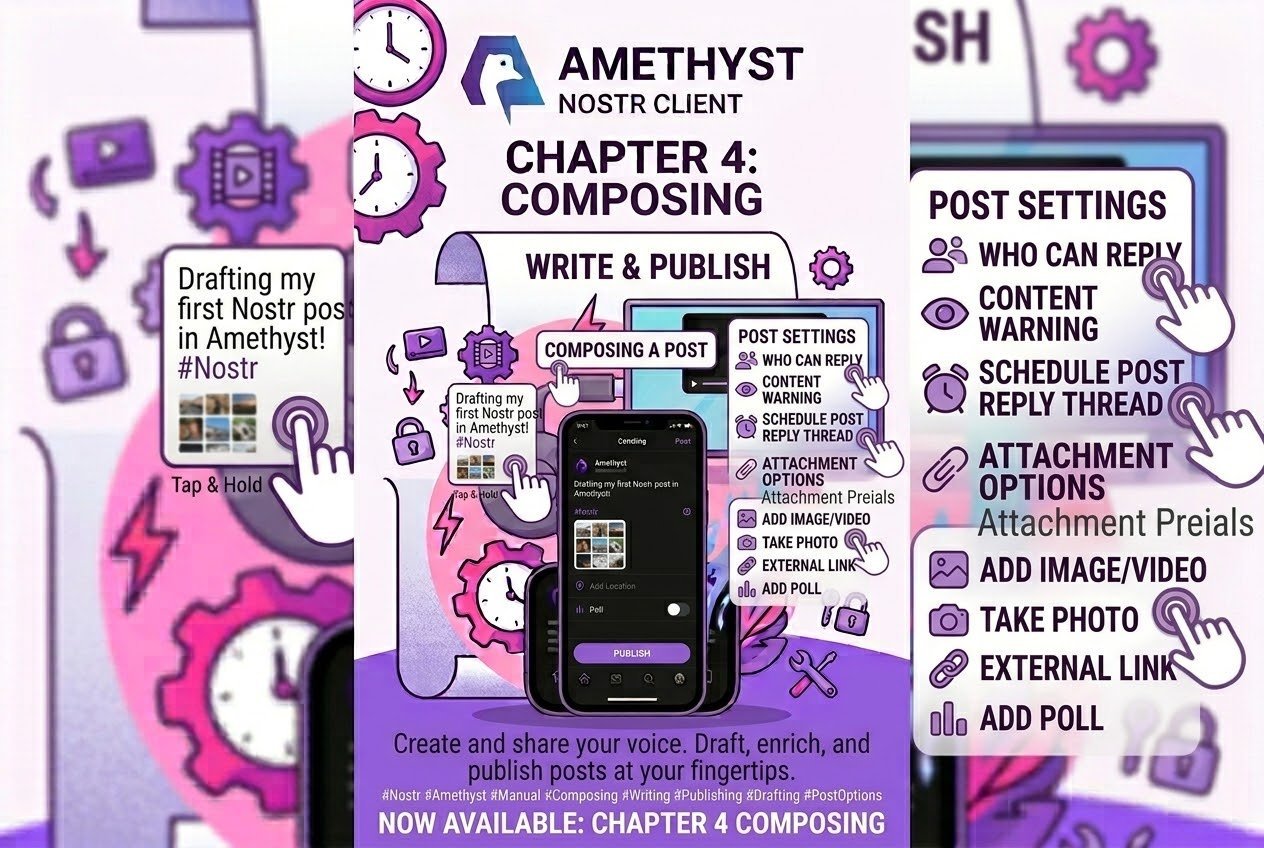
The composer's bottom action row scrolls horizontally. Every per-post option in Amethyst — media, camera, voice, private note, poll, zap split, zapraiser, proof of work, subject, sensitive, expiration, schedule, location, secret emoji, Lightning invoice — lives in one horizontally-scrolling row. There is no chevron, overflow menu or second line: the row itself is the whole menu, and a sideways drag is how you move along it.
On a normal phone roughly half of those buttons sit past the right edge. The row has a fixed order, with the more specialised items at the end, which means Schedule, Location, Secret Emoji and the Lightning-invoice button are the ones furthest along — the ones to scroll for. Because the order is fixed and can't be changed, they are always in the same place once you know where to look.
If you take one action from this post, make it this: open the composer, put a finger on that row, and drag it left. There is a whole app down there.
Tap your own avatar to post anonymously
The avatar to the left of the message field is a button. Tap it and your picture becomes a "no accounts" glyph, and the post publishes from a throwaway keypair instead of your identity. Tap the glyph to come back.
The avatar carries no label, so this one is worth committing to memory. If you went looking for the incognito icon that used to sit in the post field: it wasn't removed in v1.06, it moved here.
Two things to know. The toggle is unavailable while the private-note padlock is on — a private note is sealed with your real key, because the recipients need to know who is talking to them, so tapping the avatar with the padlock on leaves the post as yourself. And the good news: media you attach to an anonymous post uploads under the ephemeral signer too, so the upload doesn't deanonymise you.
Quote and Fork pre-fill a zap split
Open the composer via Quote or Fork and Amethyst pre-fills a zap split with the original author, routing a share of every zap your post receives to them. It is configured before the screen is drawn, so it is there from the first keystroke.
The shares are generous: 90% to the author you quoted, 80% to the one you forked, the remainder to you. Two places show it. The zap split section opens itself, sliders and all, under the text field — on a phone that is usually under the keyboard, so dismiss the keyboard to see it — and the forward-zap button in the bottom row lights up (scroll the row if it's past the right edge). So the standard flow — tap quote, type your take, tap Post — publishes a note that forwards nine-tenths of its zaps to the person you quoted. Drag a slider to change the shares, or tap the forward-zap button to switch the split off altogether; quoting yourself adds nothing. One more edge: a split with zero or malformed weights isn't displayed at all, so if you set one up and see no split section, check the weights.
The buttons at the far end of the row
Schedule (the timer button). Pick a time instead of posting now. One fact explains the whole feature: your phone publishes it — there is no server. A background job on your device fires it, which is why times round up to the next quarter-hour (Android's minimum background interval is 15 minutes, so the picker won't display a precision it can't hit), why tapping the timer with always-on notifications off gets you a prompt to turn them on instead of a schedule, and why a post missed while you were offline is late rather than lost. Tapping the timer again clears the schedule, and the button is hidden when the padlock is on: a private note cannot be scheduled. There's a full standalone guide, Schedule posts for later in Amethyst, which has the rest.
Location. Attaches a geohash so the post shows up in location feeds. Turn it on and a second switch appears in the revealed section: Location-exclusive Post. Its caption spells out the trade: only followers of the location will see it; your general followers won't. That makes it the switch for a post meant for a place rather than for your followers — leave it off for a normal post that simply carries a location.
Secret Emoji. The most playful thing in the composer. You give it a secret note for the receiver and a visible text, and it produces a string to paste into your post with the secret encoded invisibly inside emoji.
Create a Lightning invoice. Generates a BOLT-11 invoice from your Lightning address and drops it in the post body so readers can pay you from the note. The button appears only when your account has a Lightning address — if you don't see it, add a Lightning Address to your profile (Edit profile). The same condition gates the Zapraiser button, which attaches a funding goal and a progress bar that fills as zaps arrive.
The padlock, the audience flap and the other toggles
The padlock — and the Post button that renames itself. Flip the private-note toggle and the send button changes from Post to Send privately, because the event genuinely changes from a public note to a sealed one. The padlock itself snaps shut, fills into a solid coloured pill and gives a haptic tick, and the audience flap above the text switches to "Visible to". The pill is the thing to check before you publish: solid pill, private; plain padlock, public. The padlock also disappears when a poll is active or you're in a group thread, and turning it on removes the poll button: polls cannot be private, private notes cannot be polls.
The audience flap. The strip above the text field showing who this post will notify, with a small + circle for editing the list. It reads "Notify" on a public post and "Visible to" on a private one, and that change is load-bearing: removing a chip from a public post removes the notification, not anyone's ability to read it, while on a private note the chips are the recipient list, so deleting one changes who can decrypt it.
Mark as sensitive. The button blurs your post behind a warning; the part to fill in is the free-text reason field inside the revealed section — with it, readers see your explanation; without it, they get a bare "sensitive content" overlay. One distinction to keep in mind: the media upload dialog has its own "Sensitive Content" checkbox, separate from this button. It flags the attachment with a warning and carries no reason — that dialog has nowhere to type one — so use the composer button when you want to say why.
Three more with one thing to know each: Subject adds a heading line; in a group thread the button is absent because the title field is always showing and required. Expiration asks relays to drop the post after a date, which works on relays that honour NIP-40 — the rest keep it. And Poll switches between a plain poll and a Zap Poll voted on in sats, where zaps outside your min/max don't count.
Proof of work, and the ten switches behind it
New in v1.13.0. Settings → Compose Settings → Proof of Work mines a NIP-13 proof into your posts so relays and readers can weigh them against spam. Five chips — Off / 16 / 20 / 24 / 28 — are the quick picks; the custom stepper underneath reaches every value from 0 to 40. Above zero it shows "≈ x per post on this device" from a genuine on-device benchmark — a statistical mean, and on this screen it renders only for the difficulty you've currently picked; the composer's PoW button, below, is where every level shows its ETA side by side.
Below that sit ten switches choosing which event types get mined, and they become active once Difficulty is above Off — pick a difficulty first, then choose the kinds. For a single post, the PoW button in the composer's bottom row overrides your default, and this is the place to compare: every row shows its ETA ("24 bits · ≈ 45 seconds") before you choose.
Post returns at once; the mining happens behind you (since v1.17.0). Tap Post on a kind that needs work and it returns at once, as a normal post does: the nonce search goes into a mining queue, and the post is signed and sent the moment it is found. Two things look after your text while that runs. First, the composer saves a draft before it starts mining — a full flush, so the last second of typing is in it — and deletes that draft only after the mined event has actually been signed and sent; this needs Automatically create drafts on, which it is by default. Second, the job itself is checkpointed to disk, so a post that was mid-mine when the process died picks up where it left off at your next login. The timestamp is refreshed while mining, so a mined post is dated when it was found, not when you tapped Post — scheduled posts excepted.
While it mines, the broadcast banner at the top of the main screen shows the kind, the difficulty and elapsed against estimated time. Tap its X and a Stop mining? dialog offers Send without PoW or Discard post; the foreground notification ("Mining proof of work") carries the same two choices as Send now and Cancel. Reactions, reposts, anonymous posts and private notes — which mine their gift wraps, not the note inside — are opaque jobs: they are never written to disk (an anonymous post's throwaway key must not touch storage), so they don't resume after a restart, and their one option is to cancel. Cancel no longer applies once a job has reached "publishing". On Android the service has about three minutes of foreground budget; a job that outlives it resumes at the next launch.
Automatic drafts
Automatically create drafts is on by default (Settings → Compose Settings). Leave a composer with unsent text, or just stop typing, and Amethyst saves an encrypted draft event. Where it goes depends on one list: drafts are published only to your Private Home Relays (Settings → Relays), which ships empty. Fill it and drafts follow you between devices; leave it empty and they stay on the phone. The Drafts screen looks the same either way, so the relay list is where to check which of the two you've got. Pressing back saves rather than discards; turn the setting off and back discards. A proof-of-work post saves one more draft the moment you tap Post, kept until the mined event is out (see above).
Your drafts live at Drawer → You → Drafts, per account. Swipe one sideways past about 40% of its width and it latches open a red Request Deletion / Cancel background with a haptic tick; it never deletes on its own. Tapping a draft card anywhere — feed, thread, list — opens the editor, making drafts the one note type where a tap opens the composer rather than doing what a tap does on every other card.
Signature (Settings → Compose Settings) pastes a block of text into every new post, reply, quote and article — on open, not on send, so it is editable text you can delete, and it is deliberately not re-applied when you reopen an existing draft or a fork.
The AI helpers — Play only
Propose text improvements rewrites what you've typed in seven tones — Correct, Rephrase, Shorter, Elaborate, Friendly, Professional and + Emoji — as a chip row above the keyboard, on by default where it exists. It exists only in the Play build. In F-Droid the tile and its divider are omitted from Compose Settings and the panel never appears, so on F-Droid there is no setting to look for. On Play it needs an AI-capable device and fetches a model the first time it runs.
Three thresholds govern when it shows: at least 20 characters, a one-second debounce after you stop typing, and any rewrite identical to your text is dropped. And Use this replaces the entire field — not a diff, not a merge — and bumps the draft version, so the rewrite is what gets autosaved.
Same split for AI-suggested alt text, which fills an image's description field from an on-device caption: Play only, and there only where the standard upload dialog appears — notes, replies, comments, articles, DMs, listings — and not in the Pictures/Video composer.
Voice notes and Anonymize
The microphone is click-to-start, click-to-stop. It used to be hold-to-record, so if your thumb remembers the old behaviour — or the hold-to-talk of other chat apps — tap once, speak, tap again; a hold-and-release produces a one-frame recording.
Once a recording exists, the recording takes the place of the whole text row: avatar, anonymous toggle, message field, all of it. A voice note carries no body text and publishes from your own identity; discard the recording to get the field back.
Under the waveform sits an Anonymize section that pitch-shifts your recording on-device before it leaves the phone. It is available in the window between recording and sending, below the waveform, so look down before you tap Post. The mechanism belongs to post three, on media; the choice is one you make here, in the composer.
Which composer publishes which kind of event
Where you open the composer decides the kind of event you publish. Attach an image in the short-note composer and you publish a text note with a URL in it; use the FAB on the Pictures feed and you publish a picture event. The screens are near-identical, different kinds of thing go out on the network, and the route to the second is to be standing on the Pictures feed when you tap the FAB.
Highlights have three doors: a note's ⋮ menu, the Highlights screen, and — the one worth knowing — select text in any other Android app → Share → "New Highlight". It is a share target, so it appears wherever the system share sheet does: your highlighter lives in every other app's Share button.
Articles follow the same standing-in-the-right-place rule: the long-form composer opens from the FAB on the Articles feed (Discover has one too), and your own articles grow an Edit article row in their ⋮ menu. There is no wiki composer on Android, and Fork is offered for short notes only, so neither an article nor a wiki page can be forked from Android. Post two, on menus, has Fork's other rules; post nine, on the far corners, has what wiki does support.
Attachments: server fallback and the Error badge
A Blossom upload that fails on the server you picked tries the rest of your list on its own (since v1.17.0). The attachment card's server picker offers your Media Servers list — Settings → Media Servers, or the built-in defaults while that list is empty — and the upload walks it: the server you picked first, then the others in their stored order, de-duplicated by domain, until one stores the blob. Every server receives the same bytes, so they share one signed upload token: Amber, a bunker or your local key is asked once, not once per server. That single token is also the chain's off switch — a signer that refuses, times out or is read-only stops the fallback there, while one that simply returned no token is asked again on the next server. If every server fails, the error you see is the picked server's. The fallback applies to plain and encrypted uploads, in every composer and the chat upload dialog, and to Blossom servers only: a NIP-96 or NIP-95 server is a single target. Post three, on media, has the Media Servers screen itself.
A failed attachment wears an "Error" badge — tap it. The thumbnail opens an Upload Error dialog with the reason — the server's own message, payment required, the NIP-95 size limit, a metadata-strip failure, cancelled — and two buttons, Close and Remove. Remove drops that attachment from the post and the gallery updates at once, so the rest of the note can go out without it. The X on a healthy thumbnail still deletes as before; on a failed one, the dialog's Remove is the control to use.
Small things in the text field
@opens mention autocomplete, and it resolves NIP-05 identifiers and.bitnames as well as people you follow — so it hits the network, even when the search screen's Local / Relays control is set to Local, because the picker runs its own query.:opens custom-emoji and GIF autocomplete, built from your emoji list, so it fills up once you add a pack from Drawer → You → My Emoji Packs.- You can add a hashtag after publishing, from the note's ⋮ menu → Add hashtag, in the Organize section (it isn't in the long-press menu). It is a different mechanism from typing
#tagin the body. - Sending shows live per-relay progress while "Tracked broadcasts" is on in Compose Settings. It is, by default.
Help keep these ideas circulating
This is an independent project. If you'd like to help support it, you can make a contribution. But there's no obligation at all. Reading, sharing, and coming back is already a form of support.
Read also
1
Cast video to supported device

2
There's no magic server in the cloud holding your post. **Your phone publishes it.** The scheduled note sits on your dev…
3
220 things behind three dots Fifty-seven menus. Two hundred and twenty live items. At any one time you open a note's ⋮ …
Want to publish here too? No sign-up, and the text stays yours. Learn how to start
Replies (0)
Loading…